 fb5974b8c3
So, we observed lately several inconsistencies in how Codecov behave toward the CI pipeline for PRs in Certbot. One example is #6888. The most annoying thing is that the build of PR is **temporary** marked as failed, until all coverage are run. The correction on the latter is done in two PRs. This is the first part. TL;DR This PR separates the Codecov report in two: one for coverage executed on Windows, one for Linux. This is the correct way to do regarding our current CI pipeline. Actions are required by a GitHub administrator of Certbot once this PR is merged. Complete explanation So the failure stated in the introduction is essentially due to several things interacting together: * AppVeyor generates a coverage report for Windows, that have a coverage value a little lower than on Linux (96%) * Travis generates a coverage report for Linux. Its coverage is higher, and slowly decrease as more specific Windows code is added to Certbot, that cannot be tested on Travis * Since AppVeyor saw its capacity increasing, it finishes its coverage job before the one from Travis * Certbot GitHub repo is configured to require the coverage pipeline to succeed (in whatever that means) to success the overall PR build So here the suite of events: 1) PR is issued. GitHub expect three pipeline to succeed: AppVeyor CI, Travis CI and Codecov (displayed in the PR page) 2) Codecov receive first the report of AppVeyor coverage. It is 96%. It is a failure for now, because coverage in master (AppVeyor+Travis) is 98.6%. 3) GitHub is reported of the failure on Codecov, so fail the PR build 4) Codecov receive then the report of Travis coverage. It is 98%. It merges it with the report from AppVeyor, leading to the 98.6%. The failure becomes a success. 5) GitHub is reported of the success on Codecov, so, nevermind, the PR build is a success finally! So we have a CI flow that change its mind. Great. This is because of 2) and 4), and we could expect that Codecov should handle that. This is not the case: it is somewhat misleading, because Codecov adverts a lot about its capability to merge reports, including from different CI. But it is about the final state, not about the transient state, while reports are progressively received. Two things to things that a transient state is existing, with a result that can change: * first, from Codecov doc itself, explaining that reports should not be trusted during the CI pipeline execution: https://docs.codecov.io/docs/ci-service-relationship#section-checking-ci-status * second, is an example of transient state of `cryptography` project, this is advert by Codecov to be a reference of the implementation: 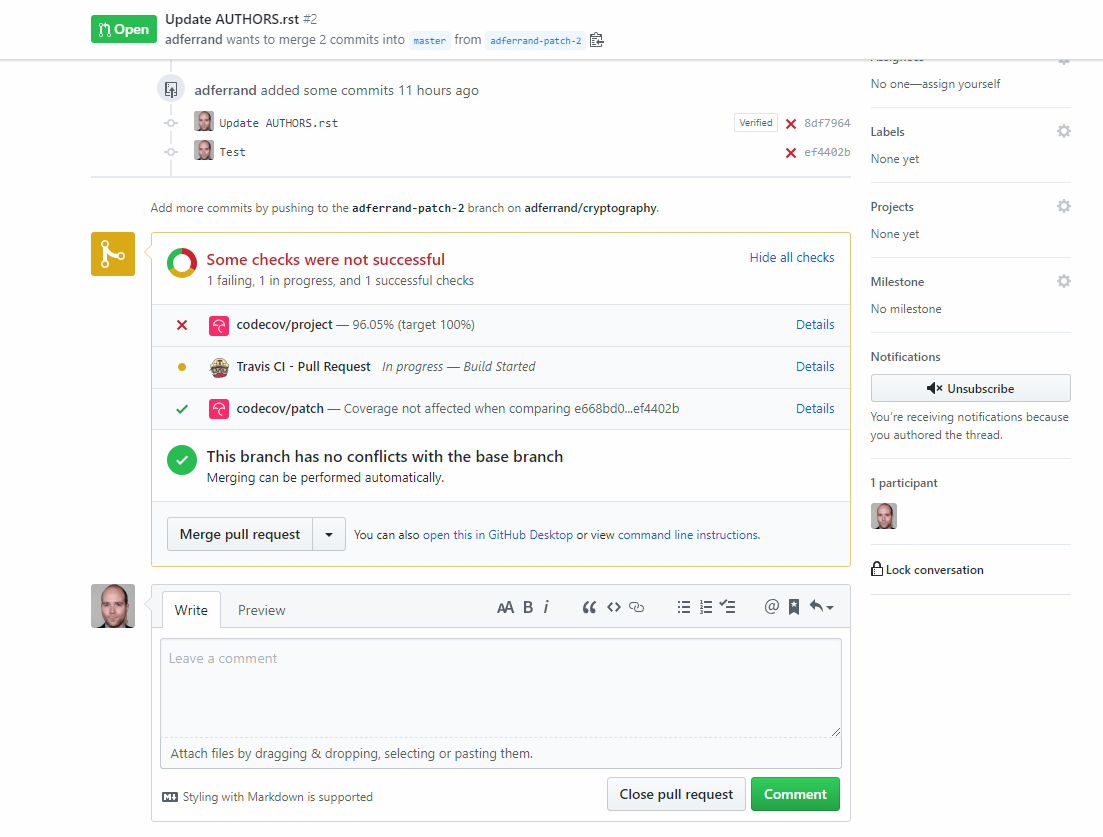 As you can see above, build state of `cryptography` is failing after the first report is received, and until all coverage reports from Travis are received. So, what can we do about it? Thing is, we are aggregating coverage from very two unrelated sources (two different OS systems), and Codecov has something for that. This is flags: https://docs.codecov.io/docs/flags Flags allow to flag coverage material depending on any logic you apply to the command that uploaded the coverage report (eg. `codecov -F a_flag`). Then, several logics can be applied on it, for instance having in Codecov UI the capability to filter the coverage other a flag, having status of build for each flag and ... having a report for a specific flag. So: 1) I modified Travis and AppVeyor to send their report under a specific flag: `linux` or `windows` 2) I created a project specific `.codecov.yml` configuration in Certbot repository, to instruct Codecov to push two separate reports on GitHub build: one for Linux, one for Windows. Each report can be validated against its specific coverage from the `master` branch (more on this just after) With all of this, now the GitHub is succeeding, because each coverage is validated independently. I think it is the good approach, because it solves the specific issue here, and because it reflects the logic behind: merging coverage from different OS architectures does not make much sense. It would be a long-term problem, because as I said at the beginning, coverages will slowly decrease as more platform specific code is added in Certbot. Now, it is not finished. Two things need to be done: an administrator action, and a second PR Administrator action Certbot GitHub as a a branch protection rule (Settings > Branches > Branch protection rules). It needs to be changed. Indeed this rule is expecting the full coverage report (named `codecov/project`) to be valid on a PR. It needs to be changed to expect two coverage reports: `codecov/project/linux` and `codecov/project/windows`. The `codecov/project` needs to be removed. This can be done once this PR is merged, and the specific coverage reports have been generated on master. Second PR Once this PR is merged and administrative actions have been done. I will make a new PR modifying `.codecov.yml` with two things: * disable the faulty full coverage report, that is not required anymore by GitHub branch protection rules * modify the `linux` and `windows` reports to validate against the relevant coverage calculated from `master` (indeed, in this PR it is a fixed ratio rule, since the coverage to compare on master is the full coverage one, significantly higher) * Tag reports * Set per-project codecov configuration

Certbot is part of EFF’s effort to encrypt the entire Internet. Secure communication over the Web relies on HTTPS, which requires the use of a digital certificate that lets browsers verify the identity of web servers (e.g., is that really google.com?). Web servers obtain their certificates from trusted third parties called certificate authorities (CAs). Certbot is an easy-to-use client that fetches a certificate from Let’s Encrypt—an open certificate authority launched by the EFF, Mozilla, and others—and deploys it to a web server.
Anyone who has gone through the trouble of setting up a secure website knows what a hassle getting and maintaining a certificate is. Certbot and Let’s Encrypt can automate away the pain and let you turn on and manage HTTPS with simple commands. Using Certbot and Let's Encrypt is free, so there’s no need to arrange payment.
How you use Certbot depends on the configuration of your web server. The best way to get started is to use our interactive guide. It generates instructions based on your configuration settings. In most cases, you’ll need root or administrator access to your web server to run Certbot.
Certbot is meant to be run directly on your web server, not on your personal computer. If you’re using a hosted service and don’t have direct access to your web server, you might not be able to use Certbot. Check with your hosting provider for documentation about uploading certificates or using certificates issued by Let’s Encrypt.
Certbot is a fully-featured, extensible client for the Let's Encrypt CA (or any other CA that speaks the ACME protocol) that can automate the tasks of obtaining certificates and configuring webservers to use them. This client runs on Unix-based operating systems.
To see the changes made to Certbot between versions please refer to our changelog.
Until May 2016, Certbot was named simply letsencrypt or
letsencrypt-auto, depending on install method. Instructions
on the Internet, and some pieces of the software, may still refer to
this older name.
Contributing
If you'd like to contribute to this project please read Developer Guide.
Installation
The easiest way to install Certbot is by visiting certbot.eff.org, where you can find the correct installation instructions for many web server and OS combinations. For more information, see Get Certbot.
How to run the client
In many cases, you can just run certbot-auto or
certbot, and the client will guide you through the process
of obtaining and installing certs interactively.
For full command line help, you can type:
./certbot-auto --help allYou can also tell it exactly what you want it to do from the command
line. For instance, if you want to obtain a cert for
example.com, www.example.com, and
other.example.net, using the Apache plugin to both obtain
and install the certs, you could do this:
./certbot-auto --apache -d example.com -d www.example.com -d other.example.net(The first time you run the command, it will make an account, and ask
for an email and agreement to the Let's Encrypt Subscriber Agreement;
you can automate those with --email and
--agree-tos)
If you want to use a webserver that doesn't have full plugin support yet, you can still use "standalone" or "webroot" plugins to obtain a certificate:
./certbot-auto certonly --standalone --email admin@example.com -d example.com -d www.example.com -d other.example.netUnderstanding the client in more depth
To understand what the client is doing in detail, it's important to understand the way it uses plugins. Please see the explanation of plugins in the User Guide.
Links
Documentation: https://certbot.eff.org/docs
Software project: https://github.com/certbot/certbot
Notes for developers: https://certbot.eff.org/docs/contributing.html
Main Website: https://certbot.eff.org
Let's Encrypt Website: https://letsencrypt.org
Community: https://community.letsencrypt.org
ACME spec: http://ietf-wg-acme.github.io/acme/
ACME working area in github: https://github.com/ietf-wg-acme/acme


System Requirements
See https://certbot.eff.org/docs/install.html#system-requirements.
Current Features
- Supports multiple web servers:
- apache/2.x
- nginx/0.8.48+
- webroot (adds files to webroot directories in order to prove control of domains and obtain certs)
- standalone (runs its own simple webserver to prove you control a domain)
- other server software via third party plugins
- The private key is generated locally on your system.
- Can talk to the Let's Encrypt CA or optionally to other ACME compliant services.
- Can get domain-validated (DV) certificates.
- Can revoke certificates.
- Adjustable RSA key bit-length (2048 (default), 4096, ...).
- Can optionally install a http -> https redirect, so your site effectively runs https only (Apache only)
- Fully automated.
- Configuration changes are logged and can be reverted.
- Supports an interactive text UI, or can be driven entirely from the command line.
- Free and Open Source Software, made with Python.
For extensive documentation on using and contributing to Certbot, go to https://certbot.eff.org/docs. If you would like to contribute to the project or run the latest code from git, you should read our developer guide.